To sync Canvas to Notion, you need a third-party tool, because Canvas and Notion don't connect on their own. Three options work in 2026: PassAI, which fills a Notion planner from your Canvas calendar automatically every morning; the Canvas to Notion Chrome extension, which copies your assignments when you click sync; and the open-source canvas-notion-integration script, which you run yourself. Only the first one keeps updating without you.
Here's how each one works, what it costs, and where it falls short.
Canvas to Notion: the 3 options compared
| Option | Updates on its own | Setup | Needs | Grade weights | Price |
|---|---|---|---|---|---|
| PassAI | Yes, every morning | 2 links, about 2 minutes | Canvas calendar feed link | Yes, from your syllabus | Free for 2 classes; Pro for all |
| Canvas to Notion (extension) | No, click to sync | Install + connect Notion | Chrome, open Canvas tab | Not stated | Free |
| canvas-notion-integration (script) | No, run it each time | Node or Docker, 2 API keys | Canvas access token + Notion integration secret | No | Free, open source |
If you only remember one row: a sync you have to trigger is a sync you'll forget in week 6.
Method 1: Sync Canvas to Notion automatically with PassAI
PassAI's Notion sync reads your Canvas calendar feed and writes every class and due date into a Notion planner, then repeats that every morning. It's the only one of the three that keeps up when a professor moves a due date on a Tuesday.
How to set it up:
- Copy your Canvas feed link. In Canvas, click Calendar in the left menu, then Calendar Feed at the bottom right, and copy the link.
- Paste it into PassAI. Create a free account, open Integrations, and paste the link under Canvas. Every class and due date comes in at once.
- Connect Notion. Under Notion sync, click Connect. Notion asks which workspace to use; on the second screen, choose Duplicate template.
- Done. PassAI adds the Semester Planner to your Notion and fills it with your classes and deadlines. It updates again every morning.
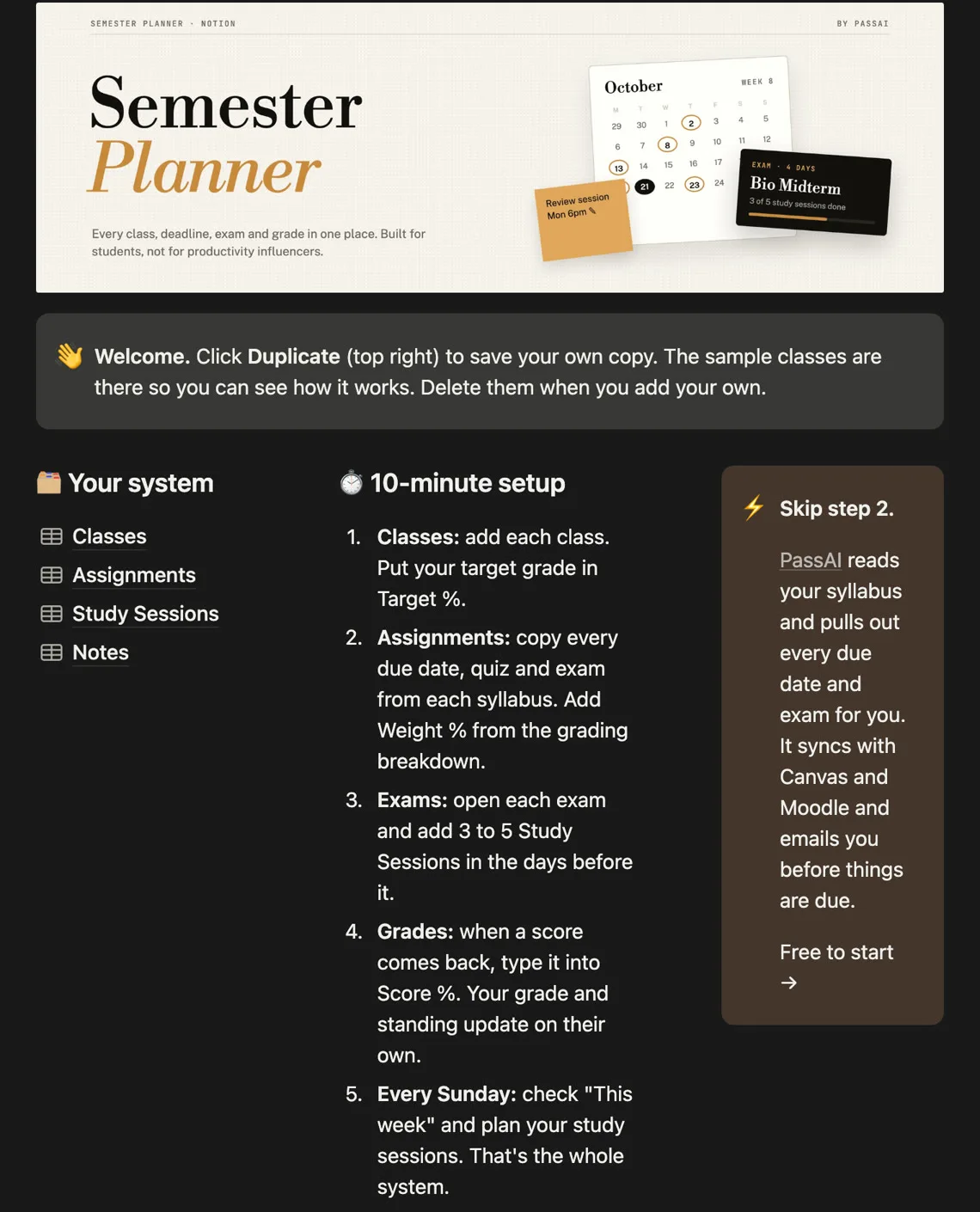
What PassAI writes into Notion: each class's name, course code and professor, and for every deadline its name, class, due date, type (homework, quiz, exam, project, paper, lab or reading), weight and score. What it never touches: your status, notes, priority, study sessions, or rows you added yourself. If you delete a row in Notion, it stays deleted.
Moodle works the same way. Paste Moodle's calendar export link instead of the Canvas one.
The catch: it's one-way. Changes you make in Notion don't flow back to Canvas or PassAI, and nothing writes to Canvas, which is how it should be for a gradebook.
Method 2: The Canvas to Notion Chrome extension
The Canvas to Notion extension copies your Canvas assignments into a Notion page you pick. You connect Notion in the extension's settings, open Canvas, launch the extension and click Sync All Assignments.
As of October 2026 it has 534 users and 3 ratings (all 5 stars), and it was last updated September 13, 2026. Its listing describes the sync as automatic, but the flow it documents is a button you press inside Canvas, so new assignments only arrive when you remember to press it.
Pick it if you live in Chrome, open Canvas every day anyway, and don't need grade weights. Its listing doesn't say which Canvas data it reads, so check its privacy policy before installing.
Method 3: The open-source canvas-notion-integration script
canvas-notion-integration is a free, MIT-licensed script that exports your Canvas assignments into a Notion database. It has 25 stars on GitHub.
Setup takes three pieces:
- a Canvas access token (Canvas → Account → Settings → Approved Integrations → New Access Token),
- a Notion integration secret from Notion's developer settings, shared with the page you want filled,
- Node or Docker to run it.
Its README is upfront about the limit: you run the script again every time something changes in Canvas. Pick it if you code and want full control. Treat the Canvas access token like your password, because it can reach far more of your account than your calendar.
Method 4: Copy your deadlines in by hand
You can skip syncing and type everything into Notion yourself. It's free and it works, but it costs real time: one History syllabus we tested had 16 graded items, so five classes is roughly 80 rows. And a hand-built list goes stale the first time a professor moves a date. Most students who start this way stop by midterms.
If you go this route, use a template so you're not building the database too. Our roundup of the best Notion templates for college students compares seven, five of them free.
Why grade weights matter more than due dates
Canvas's calendar knows when things are due, not how much they're worth. In a synced list, a 25% midterm and a 2% discussion post look identical, and that's the number that should decide where your week goes.
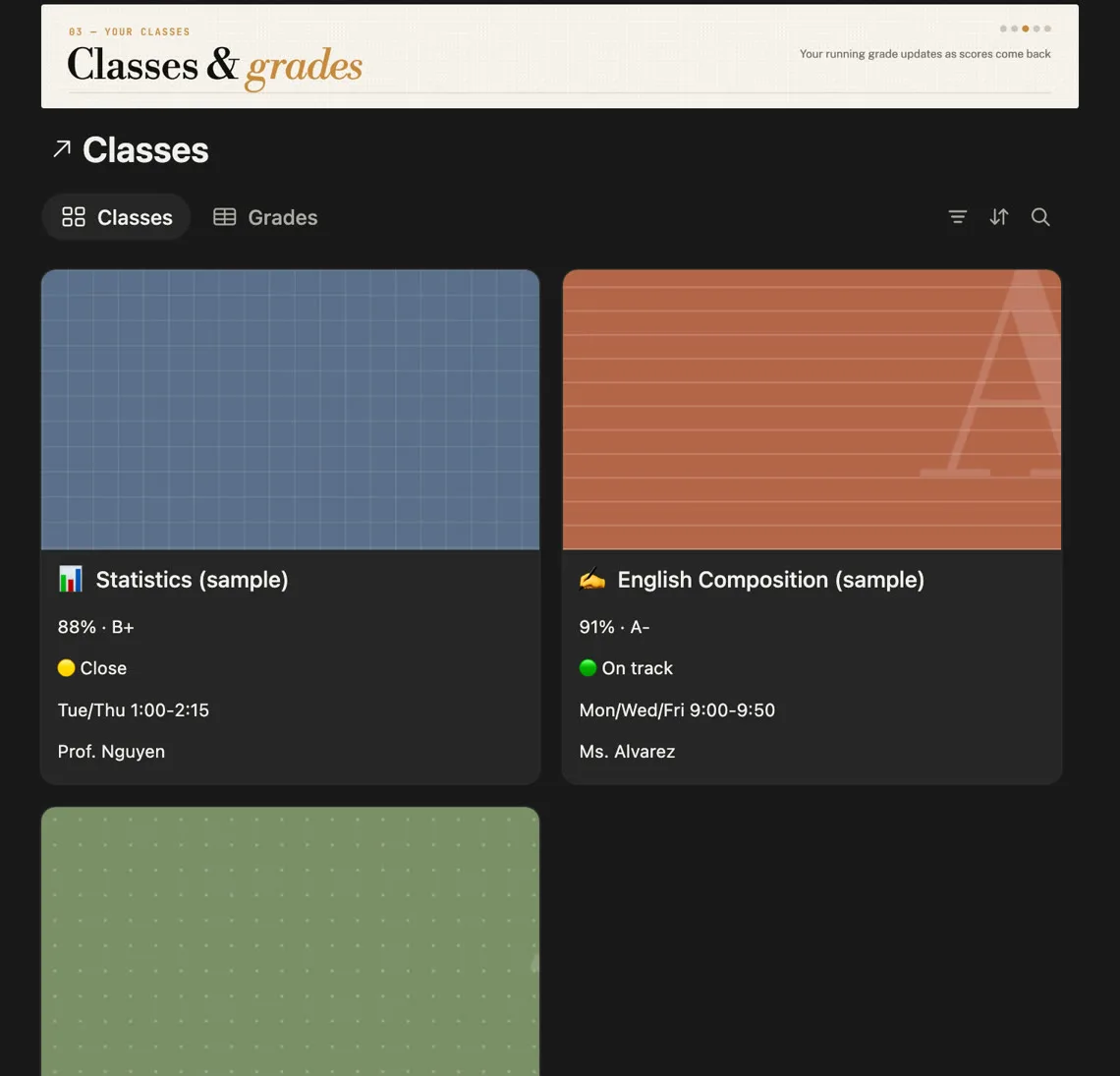
PassAI fills the gap by reading your syllabus: upload it and every deadline gets its weight from the grading breakdown. Those weights land in the planner's Weight % column, and once scores come back, each class in Notion shows a running grade and whether you're on track. Here's how to prioritize assignments by grade weight once you have them.
Is it safe to connect Canvas to a third-party app?
It depends on what you hand over. Here's what each option asks for:
- Calendar feed link (PassAI): a read-only link to your Canvas calendar. It carries titles and due dates, not grades, submissions or messages.
- Canvas access token (the script): acts as you in Canvas's API. Only create one for code you trust, and delete it from Approved Integrations when you're done.
- Browser extension: runs inside your logged-in Canvas tab. Read its privacy policy, and stick to extensions that are actively updated.
On the Notion side, PassAI only touches the planner it adds to your workspace. You can disconnect from PassAI's Integrations page, and remove its access fully in Notion under Settings, then Connections.
Which way should you sync Canvas to Notion?
Pick by how much you want to think about it:
- You want it to just stay current: PassAI. Two links, then nothing to remember.
- You open Canvas daily and only need titles and dates: the Canvas to Notion extension.
- You code and want to own the pipeline: canvas-notion-integration.
- You have two classes and like typing: do it by hand with a template.
If Notion is mostly where you take notes, you might not need deadlines in it at all. Our honest Notion vs PassAI comparison covers when to use which, and why Canvas alone isn't enough explains the gaps Canvas leaves either way.